From Bash to Zsh: Creating a High-Performance Terminal Workflow

If you want to do in bash. add this code to you ~/.bashrc
##### Custom Multiline Bash Prompt (P10k Style) START
# ==============================
# Colors
# ==============================
BLUE="\[\033[01;34m\]"
GREEN="\[\033[01;32m\]"
CYAN="\[\033[01;36m\]"
YELLOW="\[\033[01;33m\]"
RED="\[\033[01;31m\]"
WHITE="\[\033[00m\]"
GRAY="\[\033[01;30m\]"

# ==============================
# Icons
# ==============================
ICON_BRANCH="⎇"    # U+2387
ICON_PROMPT="❯"    # U+276F
ICON_ERR="↺"       # U+21BA
FILL_CHAR="-"      # U+2500  (change to "-" or "·" if you prefer)

# ==============================
# Git branch (safe + fast)
# ==============================
git_branch() {
    command -v git >/dev/null 2>&1 || return
    git rev-parse --is-inside-work-tree &>/dev/null || return
    local branch
    branch=$(git branch --show-current 2>/dev/null)
    if [ -n "$branch" ]; then
        echo "$branch"
    else
        git rev-parse --short HEAD 2>/dev/null
    fi
}

# ==============================
# Display path that mirrors \w  ($HOME -> ~)
# ==============================
display_path() {
    case "$PWD" in
        "$HOME")    echo "~" ;;
        "$HOME"/*)  echo "~${PWD#$HOME}" ;;
        *)          echo "$PWD" ;;
    esac
}

# ==============================
# Count visible columns (handles multibyte Unicode icons)
# ==============================
visible_len() {
    printf '%s' "$1" | wc -m
}

# ==============================
# Repeat a (possibly multibyte) char N times — replaces buggy `tr`
# ==============================
repeat_char() {
    local n=$1 ch=$2 spaces
    [ "$n" -le 0 ] && return
    printf -v spaces "%${n}s" ""
    printf '%s' "${spaces// /$ch}"
}

# ==============================
# Capture last exit status BEFORE anything else runs in the prompt
# ==============================
__set_last_status() { __LAST_STATUS=$?; }
PROMPT_COMMAND='__set_last_status'

exit_indicator() {
    [ "${__LAST_STATUS:-0}" -ne 0 ] && echo " ${ICON_ERR} ${__LAST_STATUS}"
}

# ==============================
# Draw horizontal line — dynamic, icon-aware
# ==============================
draw_line() {
    local cols=$(tput cols)
    local dpath;    dpath=$(display_path)
    local branch="$1"
    local time_str; time_str=$(date +%r)
    local err;      err=$(exit_indicator)

    # Visible content (no color codes), mirrors what PS1 renders:
    #   "╭─ path"  [" ⎇  branch"]  [err]  " "  "time"
    local left="╭─ $dpath"
    [ -n "$branch" ] && left+=" $ICON_BRANCH  $branch"   # two spaces after icon
    [ -n "$err" ]    && left+="$err"
    local right="$time_str"

    local used=$(( $(visible_len "$left") + $(visible_len "$right") + 2 ))
    local total_fill=$(( cols - used ))

    repeat_char "$total_fill" "$FILL_CHAR"
}

# ==============================
# Prompt
# ==============================
PS1="\n${WHITE}╭─ ${BLUE}\w\$( \
    b=\$(git_branch); \
    [ -n \"\$b\" ] && echo \"${WHITE} ${YELLOW}${ICON_BRANCH}  ${GREEN}\$b\"; \
)\$( \
    [ \"\${__LAST_STATUS:-0}\" -ne 0 ] && echo \"${RED} ${ICON_ERR} \${__LAST_STATUS}${WHITE}\"; \
) ${WHITE}\$(draw_line \"\$(git_branch)\") ${WHITE}\$(date +%r)\n${WHITE}╰─${CYAN}${ICON_PROMPT} ${WHITE}"

###### Custom Multiline Bash Prompt (P10k Style) END
⚡ Step 1 — Install Zsh
Ubuntu ships with Bash by default, so switch:
sudo apt update
sudo apt install zsh -y
Check version:
zsh --version⚡ Step 2 — Install Oh My Zsh
This is the framework that makes everything easy:
👉 Oh My Zsh
sh -c “$(curl -fsSL https://raw.githubusercontent.com/ohmyzsh/ohmyzsh/master/tools/install.sh)”This will:
switch your shell to Zsh
create config file: ~/.zshrc
⚡ Step 3 — Add autosuggestions
👉 zsh-autosuggestions
git clone https://github.com/zsh-users/zsh-autosuggestions \
${ZSH_CUSTOM:-~/.oh-my-zsh/custom}/plugins/zsh-autosuggestions
⚡ Step 4 — Add syntax highlighting (optional but worth it)
👉 zsh-syntax-highlighting
git clone https://github.com/zsh-users/zsh-syntax-highlighting.git \
${ZSH_CUSTOM:-~/.oh-my-zsh/custom}/plugins/zsh-syntax-highlighting
⚡ Step 5 — Enable plugins
Edit config:
nano ~/.zshrcFind this line:
plugins=(git)Replace with:
plugins=(git zsh-autosuggestions zsh-syntax-highlighting)Save and reload:
source ~/.zshrc
Install Powerlevel10k
Assuming you are using Oh My Zsh, run this command in your terminal:
git clone --depth=1 https://github.com/romkatv/powerlevel10k.git ${ZSH_CUSTOM:-$HOME/.oh-my-zsh/custom}/themes/powerlevel10kThen, open your .zshrc file:
nano ~/.zshrcFind the line ZSH_THEME="..." and change it to:
ZSH_THEME="powerlevel10k/powerlevel10k"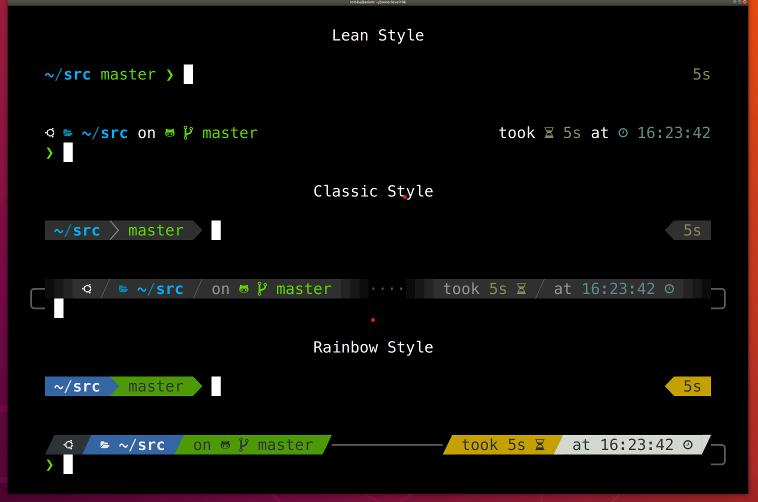
3. Run the Configuration Wizard
Restart your terminal or run source ~/.zshrc. The configuration wizard should start automatically. If it doesn't, type:
p10k configure